
GraphCrunch 2
Software tool for network modeling, alignment and clustering
Oleksii Kuchaiev, Aleksandar Stevanovic, Wayne Hayes, Natasa Przulj
Corresponding author: Prof. N. Pržulj, natasa.przulj@mbzuai.ac.ae
About GraphCrunch 2 · User Manual · Download GraphCrunch 2 · Download MI-GRAAL · Screenshots · Contact Info
About GraphCrunch 2
GraphCrunch 2 is a new version of our GraphCrunch software tool for network analysis, modeling and alignment. It automates tasks of finding the best fitting model for the network data, pairwise comparisons of networks, alignment of two networks using GRAAL algorithm (a better network alignment algorithm, MI-GRAAL, is also available for download), and provides capabilities of clustering network nodes based on their topological surrounding in the network. Furthermore, GraphCrunch 2 is highly efficient in computing these tasks, utilizing a parallelization architecture to speed up computations by running tasks in parallel using all available cores and processors in the computer. Designed with a user friendly, easy and intuitive drag and drop interface, GraphCrunch 2 allows users previously unfamiliar with GraphCrunch to quickly become proficient with typical use case scenarios.
GraphCrunch 2 allows users to stop and resume long computations, provides for reuse of previously computed results without recomputing them again and even recover from hardware malfunctions/execution interruptions without any loss of data or any unnecessary recomputations of previously finished tasks.
For more detailed description of GraphCrunch 2 and its capabilities, see the BMC Bioinformatics paper.
Update: The results presented in Figure 2 of the BMC Bioinformatics paper are slightly affected from the update in version 2.1. Figure 2 presented in the paper is updated as below:
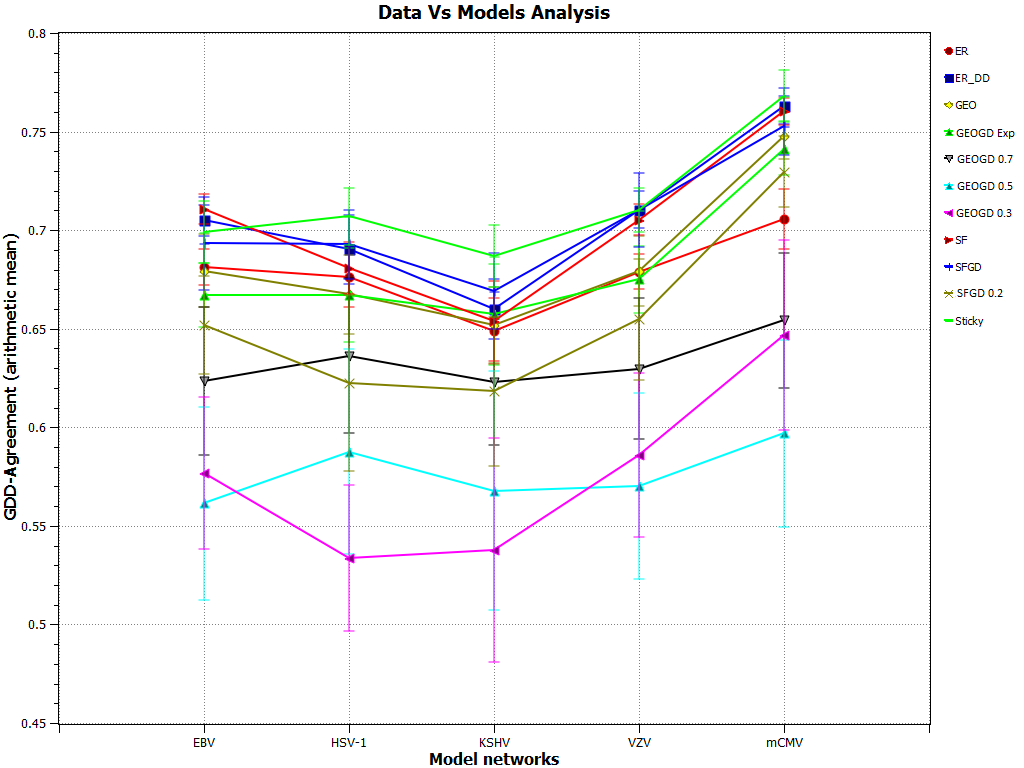
GDD-agreement between the viral PPI networks and the model networks. GDD-agreement between the viral PPI networks and the model networks. Points on the horizontal axis correspond to viral PPI networks of: EBV, HSV-1, KSHV, mCMV, and VZV herpes viruses. Lines with different labels correspond to different model networks. The vertical axis represents the average GDD-agreement between the corresponding data and model networks. For each data network, we generated 30 network model instances, each constrained to be of the size of the data. The plot reports the averaged the GDD-agreement values and standard deviations of their GDD-agreement with the data. Higher values of GDD-agreement reflect higher similarities between the networks. This plot was generated by GraphCrunch 2.1.1.
User Manual
Network loading
GraphCrunch 2 provides for a range of analysis that can be done on data networks. For each type of analysis separate tab exists where the user can specify the options for each analysis and load appropriate networks to be analyzed. In order to analyze any network, GraphCrunch 2 must load the network into its network storage database, which is done by using the Load network option located at the top toolbar. For ease of use, user can specify multiple networks to be loaded at the same time.
A network that is loaded is copied into network storage database and registered with the program, at which point it will appear in the network pane conveniently provided on the left side of GraphCrunch 2 ready for use. Loading a network for any type of analysis is equivalent to simply dragging the network from the network pane onto an appropriate field for each analysis.
Types of analysis
GraphCrunch 2 provides access to all types of analysis through the list of tabs located on the main window of GraphCrunch. Each tab represents a different type of analysis, except for Results Plot and Task Manager which, as their name suggests, are in charge of presenting the computed results in plots and monitoring the progress of the computations, respectfully.
Pairwise Analysis
Pairwise data analysis allows the user to compare two sets of data networks against each other. Each set can contain one or more data networks, loaded in GraphCrunch. Comparisons are performed on unique pairs between sets, excluding duplicates. Therefore, if one wants to compute pairwise comparisons between all networks in a single set it is enough to assign the second set with the same networks as the first. Results are represented in a tabular fashion, on the same tab, with the ability to save them into a csv (comma separated file) or copy paste them into Microsoft Excel or any other spreadsheet application for further analysis.
To run the analysis, first select the set of networks you wish to compare by dragging them from the network pane into the provided fields on the “Pairwise Data Analysis” tab. Pressing “Run Analysis” button will initiate the computation, moving the user to the Task Manager tab, showing the current progress of the whole operation. During the computation, result table located just below the input sets will be populated with results. User may wish to extend the region of the table to see more rows, by dragging the middle line separating the data input and results sections.
Data vs Models Analysis
Unlike Pairwise Data Analysis, Data vs Models Analysis focuses on one network or set of networks. As the name suggests, this analysis models the loaded data networks using the selected models (and their parameters) and compares them as to find out the best fitting model. The user is presented with 7 major models to choose from:
- ER Model (Erdos-Renyi)
- ERDD Model (Erdos-Renyi with matching degree distribution)
- Geo Model (Geometric)
- GeoGD Model (Geometric based on Gene Duplication principles)
- SF Model (Scale free)
- SFGD Model (Scale free based on Gene Duplication principles)
- Sticky Model (Sticky preferential attachment)
After selecting any of the above models, Model parameters area will change to reflect the selected model, providing the user with the way to change specific parameters for each model if there are any. For detailed description on the role and effects of each parameters please see the detailed manual.
On the right section of the window is the Models pane, which contains the list of all models scheduled to be generated per network. While this list is initially empty, user can specify which models should be generated, their parameters and the number of each model instances by selecting the appropriate controls and finally clicking on the Add button. In a similar manner the user can remove any models from the list by selecting them and clicking on the Remove button.
In this way, user can generate multiple models and instances with different parameters. Each model is characterized by its type, network indices and parameters. Indices allow user to identify which parameters generated model networks have later on, if there are for example multiple model instances of the same type computed but with different parameters.
As before, clicking on “Run comparisons” will initiate the computation with the application switching over to the Task Manager for an overview of the progress.
Result plots
For both Pairwise Data Analysis and Data Vs Models analysis, GraphCrunch provides graphical representation of the results in the Results plot tab. After any of the two above mentioned analysis is complete, the plot will be updated with the data. Initially, all available data will be shown on the plot, as it will be indicated by the Data series list. The user, can manually select/deselect any of the networks/models to manipulate the plot to show only the desired subset of the results. Plot are provided for all types of results provided by the analysis, and the selection can be changed using the drop down box at the bottom named Plot type. Finally, the user can at any time save the plot as an PNG image by clicking on the Save plot button.
Network properties
At times it is useful to assess some of the global properties of a network such as degree distribution, clustering coefficient and average path length. Network properties tab provides the user with a tabular view of resulting clustering coefficient and average path length, together with a plot of degree distribution.
To compute the properties, simply drag the desired networks from the network pane onto the properties table to initiation computation. As each network is processed it will update both the table and the plot showing degree distribution. The plot by default uses linear scale but two check boxes are provided to set scale for either of the axis’ as logarithmic. Finally, the user can zoom in onto a particular section of the plot by dragging a selection box on the plot and zoom out by right clicking the button.
GRAAL
GraphCrunch 2 provides user with an option to allign two networks based solely on the topology using a novel algorithm called GRAAL. In the appropriately named tab, user can choose two networks to be aligned (by dragging them from the network pane) and specify the Alpha parameter which influences the aggressiveness of the algorithm between 0.1 and 1.0. Upon successful completion of the algorithm, Node correctness (NC), Edge correctness (EC) and Interaction Correctness (IC) will be displayed, each depicting how much of the nodes, edges and interactions have been aligned correctly, respectfully. In addition the full alignment is displayed in the result table below.
Signatures and signatures based clustering
The user can also opt to compute signature similarities and cluster them according to the measure. In the “Signatures” tab, the user can specify the networks for which to compute signature similarities and the file where to save them.
Afterwards, user can cluster the the network using the computed signature similarities as a similarity measure by checking the option “I want to run clustering for Network 1” using K number of clusters, or opt to cluster using a different similarity measure. If opting for the latter, the user needs to provide the file with corresponding similarities between nodes in for that designated field.
Results are displayed in the result table below after computation, with clustering center in the first column and all other nodes in the cluster in the second column.
Download GraphCrunch 2
A bug is fixed in GraphCrunch 2 - version 2.1.1. If you downloaded GraphCrunch 2 before 03 April 2011, please download the updated version from one of the links provided below. We are sorry for the inconvenience !
GraphCrunch 2 is available for download in the following packages:
- GraphCrunch 2 - Windows 32bit version
- GraphCrunch 2 - Windows 64bit version
- GraphCrunch 2 - Source Code
- GraphCrunch 2 - Linux(Ubuntu)*
* We encourage you to use Windows version since all tests in the paper were performed using Windows version. You might need to re-compile Linux version yourself if you are using distribution other than Ubuntu.
GraphCrunch 2 uses QT 4.6 framework for GUI, Qwt 5.2.1 library for graphic plots and LEDA 6.2 library for computational tasks. For windows platform, GraphCrunch 2 already provides all the necessary libraries and files to run on your computer. On Linux OS, GraphCrunch installation already includes necessary support for LEDA and Qwt libraries, however you will need to have QT library installed as well. If you are using KDE desktop environment, QT will already be installed, otherwise (for instance if using Gnome) you will have to install it manually. Finally, if you already have QT installed it may be necessary to upgrade it as version before 4.5 are not supported.
If you wish to modify and/or extend GraphCrunch you will need to access to all the libraries and Qt framework mentioned above together with the source code of GraphCrunch 2. GraphCrunch 2 is released under GPL licence and we encourage any subsequent development and extensions of the application.
In addition to the default sample networks already provided with default GraphCrunch 2 package, you may find the following additional sample networks useful:
Bug Fixes
- A bug in GRAAL implementation is fixed with version 2.1.1
- GDD-agreement bug was fixed in version 2.1
Download MI-GRAAL
MI-GRAAL is available at github.com/przulj-lab/MI-GRAAL.
Screenshots
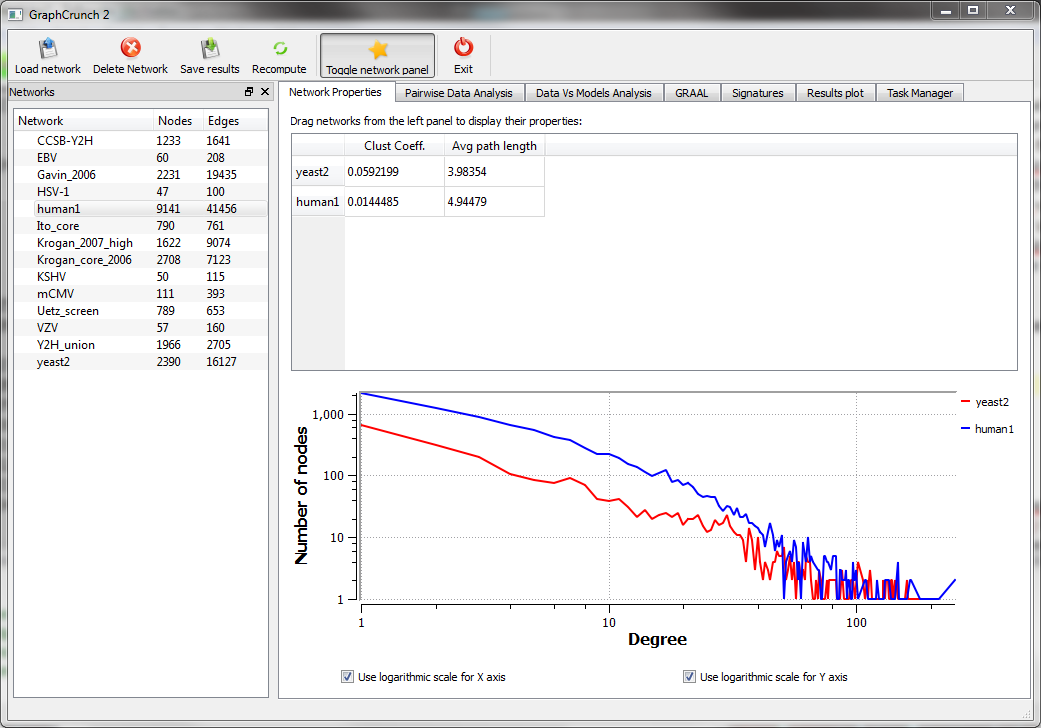 Example of computing network properties for 2 networks, yeast2 and human1, displaying their clustering coefficient, average path length and degree distribution in log-log scale. |
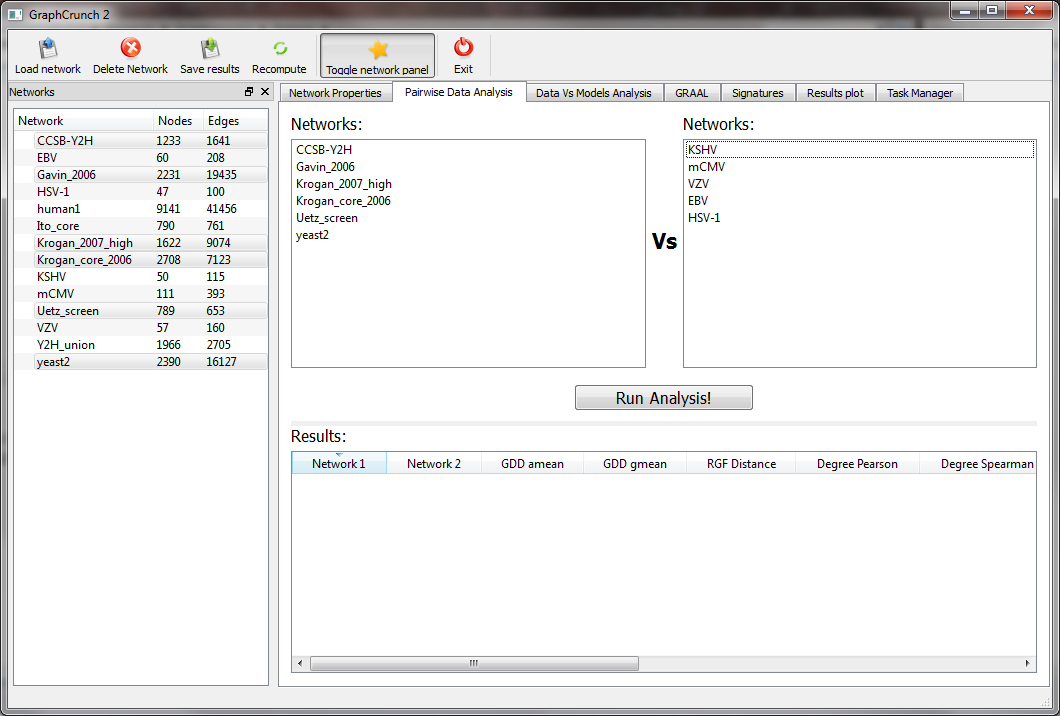 Pairwise data analysis screen, showing the initial selection of two network groups scheduled to be compared to each other. |
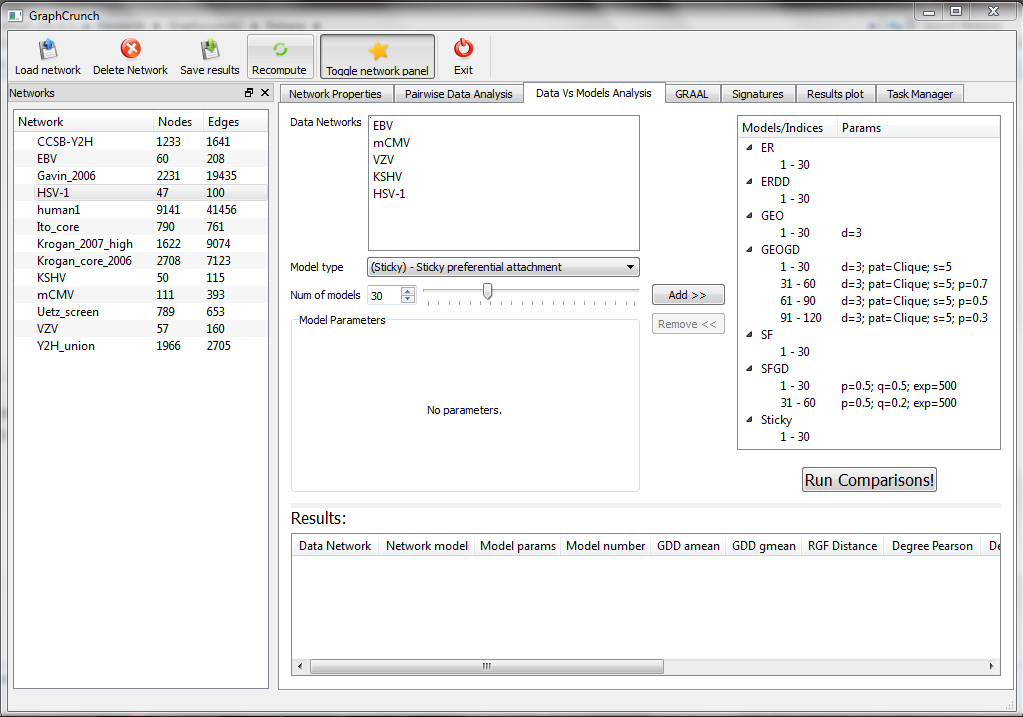 Example of Data Vs Models Analysis scheduling window, displaying a selection 5 virus networks scheduled to be compared to 11 different model types each generating 30 model instances. |
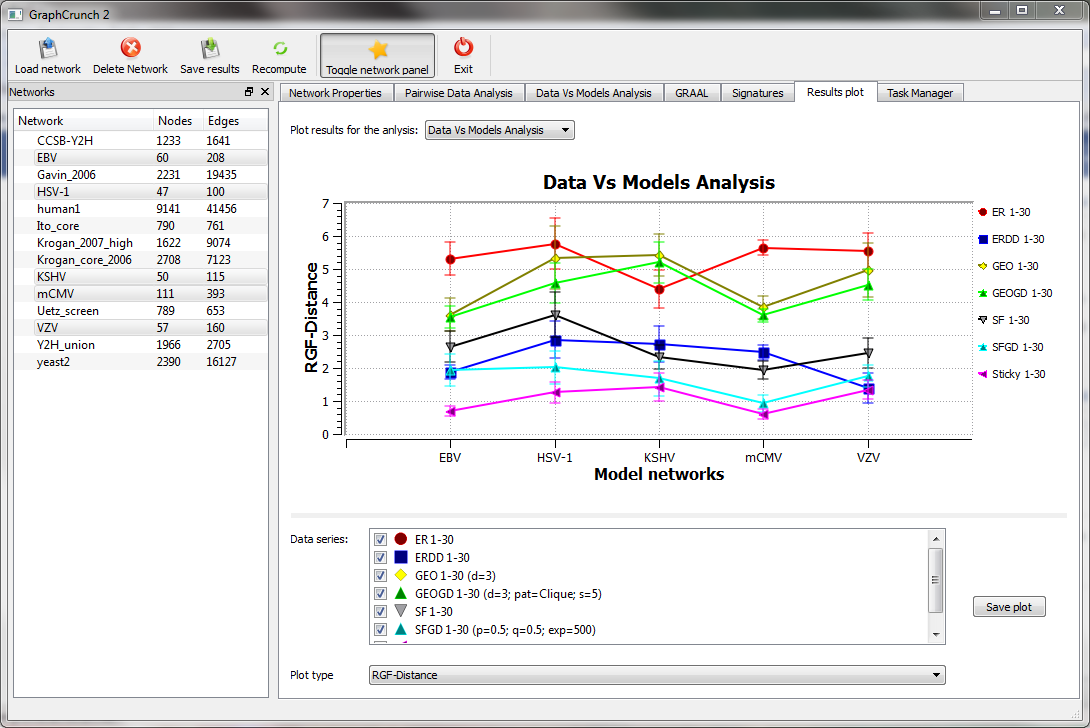 Graphic plot of the results for the virus data vs model analysis, displaying RGF distance for selected subset of models. |
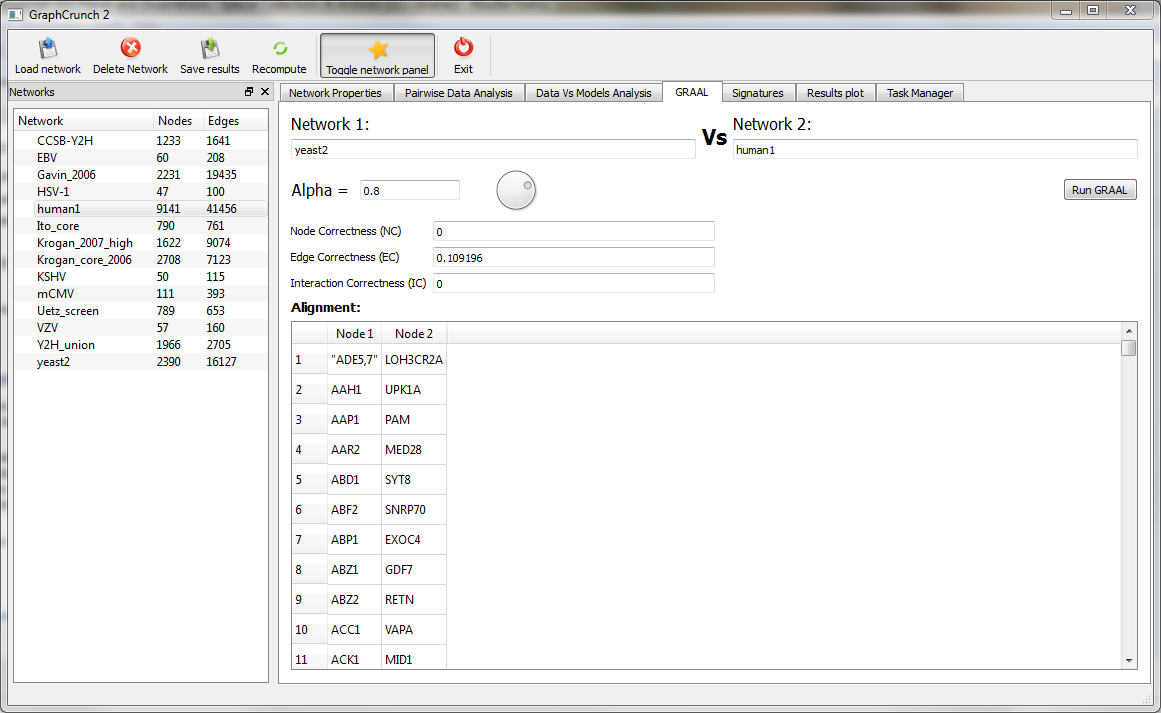 Example of GRAAL topological allignment between 2 networks, yeast2 and human1 and their coresponding node alignment. |
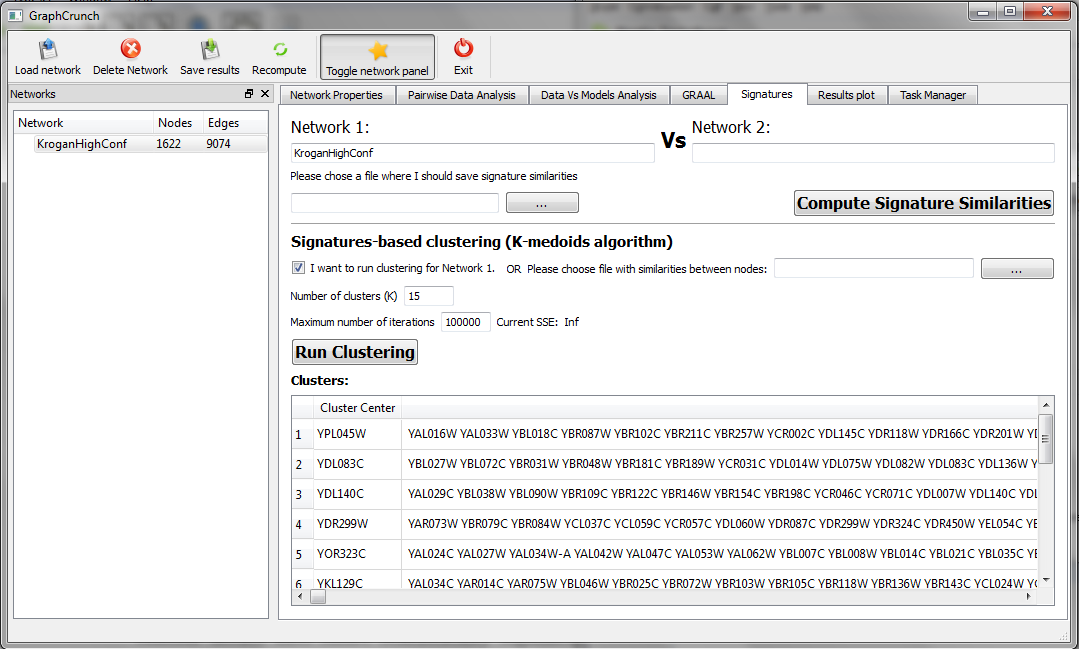 Example of signature similarities based clustering, run on previously computed Krogan High confidence signature similarities for K=15 clusters. |
Contact information
If you have questions or if you would like to contribute to the GraphCrunch please contact the corresponding author, Prof. Natasa Przulj (contact info below).
Software developers, paper authors:
Oleksii Kuchaiev, e-mail: oleksii.kuchaiev@uci.edu
Aleksandar Stevanovic, e-mail: astevano@ics.uci.edu
Principal investigator and corresponding author:
Prof. Natasa Przulj, e-mail: natasa.przulj@mbzuai.ac.ae
Citation
O. Kuchaiev, A. Stevanović, W. Hayes and N. Pržulj. GraphCrunch 2: Software tool for network modeling, alignment and clustering. BMC Bioinformatics 12, 24 (2011). https://doi.org/10.1186/1471-2105-12-24